> For the complete documentation index, see [llms.txt](https://docs.maestro.dev/llms.txt). Markdown versions of documentation pages are available by appending `.md` to page URLs; this page is available as [Markdown](https://docs.maestro.dev/reference/commands-available/runscript.md).
# runScript
Run an external JavaScript file and capture its output.
The `runScript` command executes a specified JavaScript file. The script can access environment variables and set [output](/maestro-flows/javascript/manage-data-and-states.md) values for subsequent commands in the flow.
### Parameters
The `runScript` command accepts either a string that specifies the file path or a map that contains the file path and environment variables.
| Key | Description |
| ------ | ----------------------------------------------------------------------------------------------- |
| `file` | The path to the JavaScript file to execute. Paths can be absolute or relative to the flow file. |
| `env` | **(Optional)** A map of key-value pairs to pass as environment variables to the script. |
### Usage examples
The following examples demonstrate how to use the `runScript` command.
#### Basic execution
Use `runScript` with a file path to execute a script. The script can access predefined `env` variables from the flow and set `output` values for later use.
{% tabs %}
{% tab title="Flow file" %}
```yaml
appId: com.example
env:
MY_NAME: John
---
- launchApp
- runScript: myScript.js
- inputText: ${output.uppercaseName}
```
{% endtab %}
{% tab title="JavaScript file (myScript.js)" %}
```javascript
var uppercaseName = MY_NAME.toUpperCase()
output.uppercaseName = uppercaseName // returns 'JOHN'
```
{% endtab %}
{% endtabs %}
In this example, the flow launches the app and then executes an external JavaScript file using `runScript`. The script reads the `MY_NAME` environment variable defined in the flow, converts it to uppercase, and stores the result in `output.uppercaseName`. That output value is then used in the next step to input the text `"JOHN"` into the app.
#### File paths
Paths can be relative or absolute.
When running in the cloud, relative paths are required. Relative paths are resolved from the calling flow’s location, not from the directory where the command is executed.
Given the following directory structure:
```
├── flows
│ └── test.yaml
└── scripts
└── uppercase.js
```
The `test.yaml` flow must use a relative path to reference `uppercase.js`:
```yaml
appId: com.example
env:
MY_NAME: John
---
- launchApp
- runScript: ../scripts/uppercase.js
```
#### Passing parameters
To pass parameters directly to a script, use the expanded map syntax with the `env` key.
```yaml
- runScript:
file: script.js
env:
myParameter: 'Parameter'
```
#### Console logging
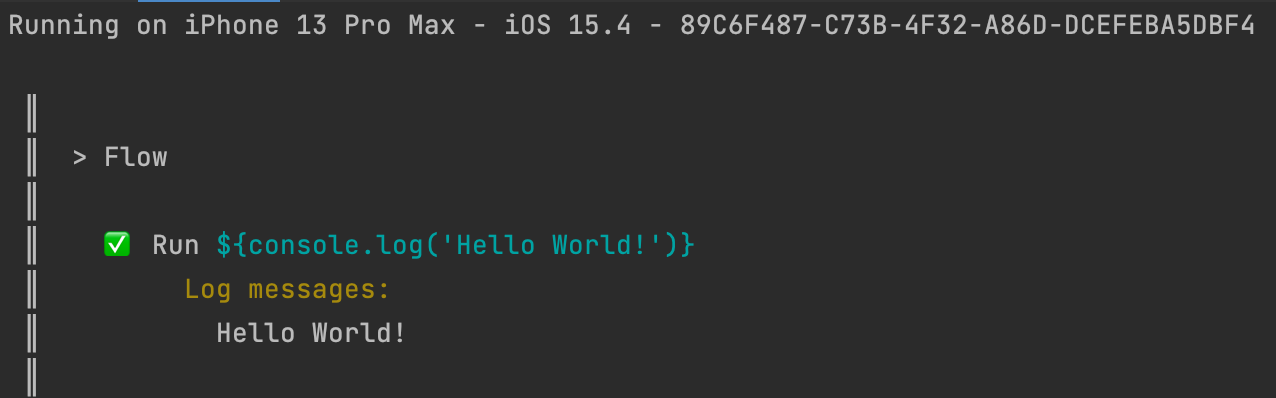
`runScript` redirects any `console.log()` output from the JavaScript file to the Maestro CLI console.
### Cloud execution
When you run flows in Maestro Cloud, you must upload the directory that contains your flows and scripts, not just a single flow file. For example, use `maestro cloud --app-file myApp.apk --flows ./myTestsFolder`.
If you do not include the script files in the upload, the execution fails with a `Failed to parse file` error.
### Related content
* [JavaScript overview](/maestro-flows/javascript/javascript-overview.md): Start exploring how to use JavaScript in your tests.
* [JavaScript outputs](/maestro-flows/javascript/manage-data-and-states.md): Learn how to store and consume JavaScript outputs in Maestro flows.
* [Parameters](/maestro-flows/flow-control-and-logic/parameters-and-constants.md): Learn how to define and use parameters in flows to make them reusable.
* [Constants](/maestro-flows/flow-control-and-logic/parameters-and-constants.md): Learn how to define constant values and reuse them across your flows.
* [Nested flows](/maestro-flows/flow-control-and-logic/nested-flows.md): Learn how to compose flows by calling one flow from another.
* [Conditional execution](/maestro-flows/flow-control-and-logic/conditions.md): Learn how to control flow execution using conditions and branching logic.
---
# Agent Instructions
This documentation is published with GitBook. GitBook is the documentation platform designed so that both humans and AI agents can read, navigate, and reason over technical content effectively. Learn more at gitbook.com.
## Querying This Documentation
If you need additional information that is not directly available in this page, you can query the documentation dynamically by asking a question.
Perform an HTTP GET request on the current page URL with the `ask` query parameter, and the optional `goal` query parameter:
```
GET https://docs.maestro.dev/reference/commands-available/runscript.md?ask=&goal=
```
`ask` is the immediate question: it should be specific, self-contained, and written in natural language.
`goal` is optional and describes the broader end goal you are ultimately trying to accomplish on behalf of the user. GitBook uses it to tailor the answer towards what is most useful for that goal.
The response will contain a direct answer to the question and relevant excerpts and sources from the documentation.
Use this mechanism when the answer is not explicitly present in the current page, you need clarification or additional context, or you want to retrieve related documentation sections.