> For the complete documentation index, see [llms.txt](https://docs.maestro.dev/llms.txt). Markdown versions of documentation pages are available by appending `.md` to page URLs; this page is available as [Markdown](https://docs.maestro.dev/get-started/quickstart.md).
# QuickStart
Install Maestro Studio, set up your environment, and run your first automated test in five minutes.
You are starting your journey with Maestro. This guide will help you install [Maestro Studio](https://docs.maestro.dev/maestro-studio/), set up your environment, and execute your first automated test (called a **Flow**) in just five minutes.
{% stepper %}
{% step %}
#### Platform-specific setup
Maestro requires a running target device to execute your tests. Use the tabs below to configure your virtual environment.
{% tabs %}
{% tab title="Android" %}
1. Download the latest version of Android Studio from the [official site](https://developer.android.com/studio) and install it.
2. Open Android Studio, click **More Actions**, and select **Virtual Device Manager**.
3. Click **Create Virtual Device (+)**, select a modern device (e.g., Pixel 8), and download a system image (API 31 or higher is recommended).
{% hint style="info" %}
Maestro currently supports **API Levels 29, 30, 31, 33, and 34**. API 35 and 36 support is arriving in Q2 2026.
{% endhint %}
4. Finish the wizard and click the **Play** button to start the emulator.
{% endtab %}
{% tab title="iOS" %}
1. Download Xcode from the [Mac App Store](https://apps.apple.com/us/app/xcode/id497799835?mt=12) and install it.
2. Open Xcode, go to `Settings > Locations`, and ensure the **Command Line Tools** are selected.
3. Open Xcode and go to `Xcode > Open Developer Tool > Simulator` to launch the simulator.
4. If no device is available, go to `Xcode > Settings > Platforms` and ensure an iOS runtime (iOS 16, 17, 18, or 24) is installed.
{% hint style="warning" %}
**Xcode is installed but no iOS simulators appear?**
If you installed Xcode without opening it (for example via [`xcodes`](https://github.com/XcodesOrg/xcodes) or a scripted install), macOS may not have installed Xcode's required system components - so the CoreSimulator framework is missing and simulators won't load. In Maestro Studio this shows up as no iOS devices in the device list.
Complete the one-time component install:
```bash
xcodebuild -runFirstLaunch
# If you're prompted to accept the license first, run:
sudo xcodebuild -license accept
# Then restart Maestro Studio
# iOS simulators should now appear.
```
{% endhint %}
{% endtab %}
{% endtabs %}
{% endstep %}
{% step %}
#### Installation
Download the appropriate installer for your operating system:
* **Windows:** [MaestroStudio.exe](https://studio.maestro.dev/MaestroStudio.exe)
* **macOS:** [MaestroStudio.dmg](https://studio.maestro.dev/MaestroStudio.dmg)
* **Linux:** [MaestroStudio.AppImage](https://studio.maestro.dev/MaestroStudio.AppImage)
Follow the platform-specific installation prompts:
* **Windows:** Double-click the `.exe` and follow the setup wizard.
* **macOS:** Open the `.dmg` and drag Maestro Studio to your `Applications` folder.
* **Linux:** Make the `.AppImage` executable and run it with the `--no-sandbox` flag:
```bash
chmod +x MaestroStudio.AppImage
./MaestroStudio.AppImage --no-sandbox
```
{% endstep %}
{% step %}
#### Create your first test
Once your device is running and Maestro Studio is open, you can create your first Flow.
1. Open Maestro Studio and click **Choose new workspace location** to define the directory on your computer to store your tests.
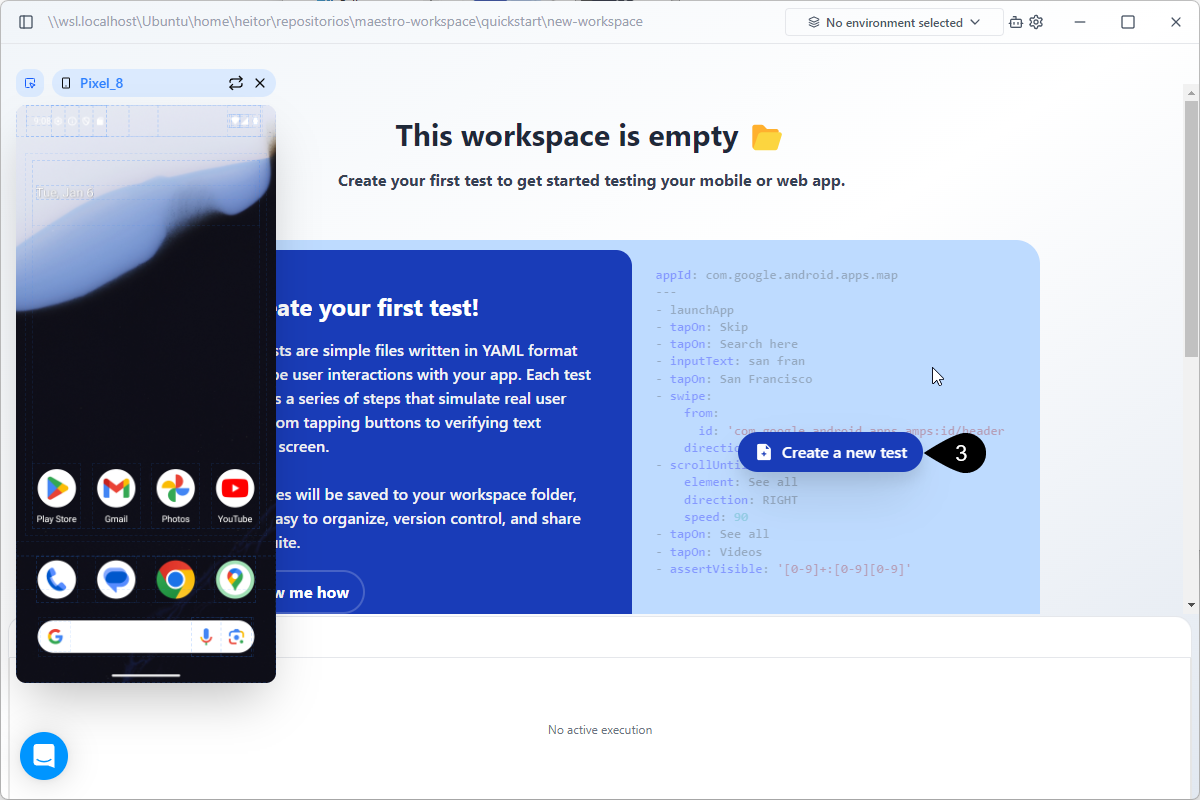
2. Click the **No device connected** button at the top. Select your running Android Emulator or iOS Simulator from the list. The virtual device will pop up.
3. Click **Create a new test** to open the setup window.
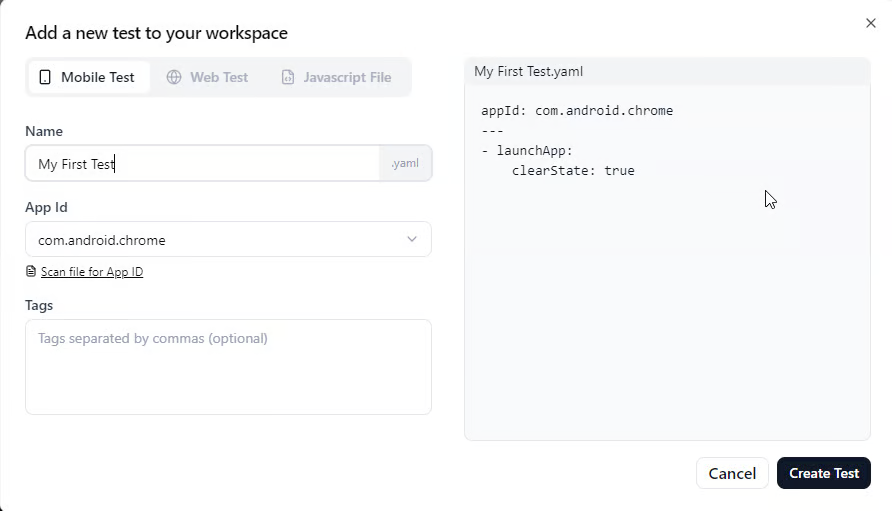
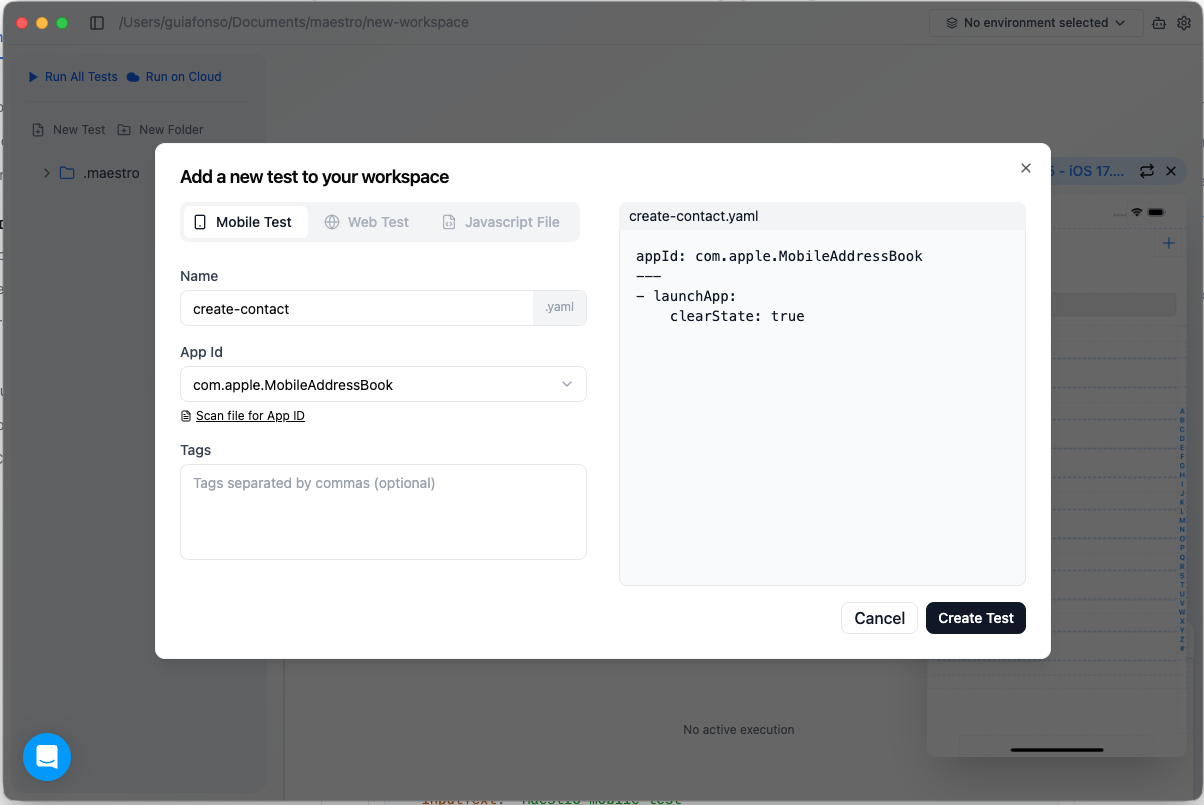
4. On the **Add a new test to your workspace** window, select **Mobile Test** and enter the following:
{% tabs %}
{% tab title="Android" %}
* **Name**: Name for your YAML file.
* **App Id**: From the dropdown menu, select the App Id for testing. For this QuickStart, select **com.google.android.contacts** from the dropdown menu.
{% endtab %}
{% tab title="iOS" %}
* **Name**: Name for your YAML file.
* **App Id**: From the dropdown menu, select the App Id for testing. For this QuickStart, select **com.apple.MobileAddressBook** from the dropdown menu.
{% endtab %}
{% endtabs %}
{% hint style="info" %}
You can also use the **Scan file for App Id** option to automatically detect the identifier from an `.apk` (Android) or `.app/.zip` (iOS) file.
You can also add tags to keep your tests organized.
{% endhint %}
6. Click **Create Test**. Maestro will generate a minimal YAML file to launch the app.
{% tabs %}
{% tab title="Android" %}
```yaml
appId: com.google.android.contacts
---
- launchApp:
clearState: true
```
{% endtab %}
{% tab title="iOS" %}
```yaml
appId: com.apple.MobileAddressBook
---
- launchApp:
clearState: true
```
{% endtab %}
{% endtabs %}
{% endstep %}
{% step %}
#### Run your first test
With your first YAML file created, let's add a few commands to perform a search.
In the Maestro Studio editor, copy and paste the example below for your platform.
{% tabs %}
{% tab title="Android" %}
```yaml
appId: com.google.android.contacts
---
- launchApp:
clearState: true
- tapOn: Allow
- tapOn: Create contact
- tapOn: First name
- inputText: John
- tapOn: Last name
- inputText: Doe
- tapOn: Company
- inputText: Maestro
- tapOn: "+1"
- inputText: 111-111-1111
- tapOn: Save
- back
- takeScreenshot: All Contacts
```
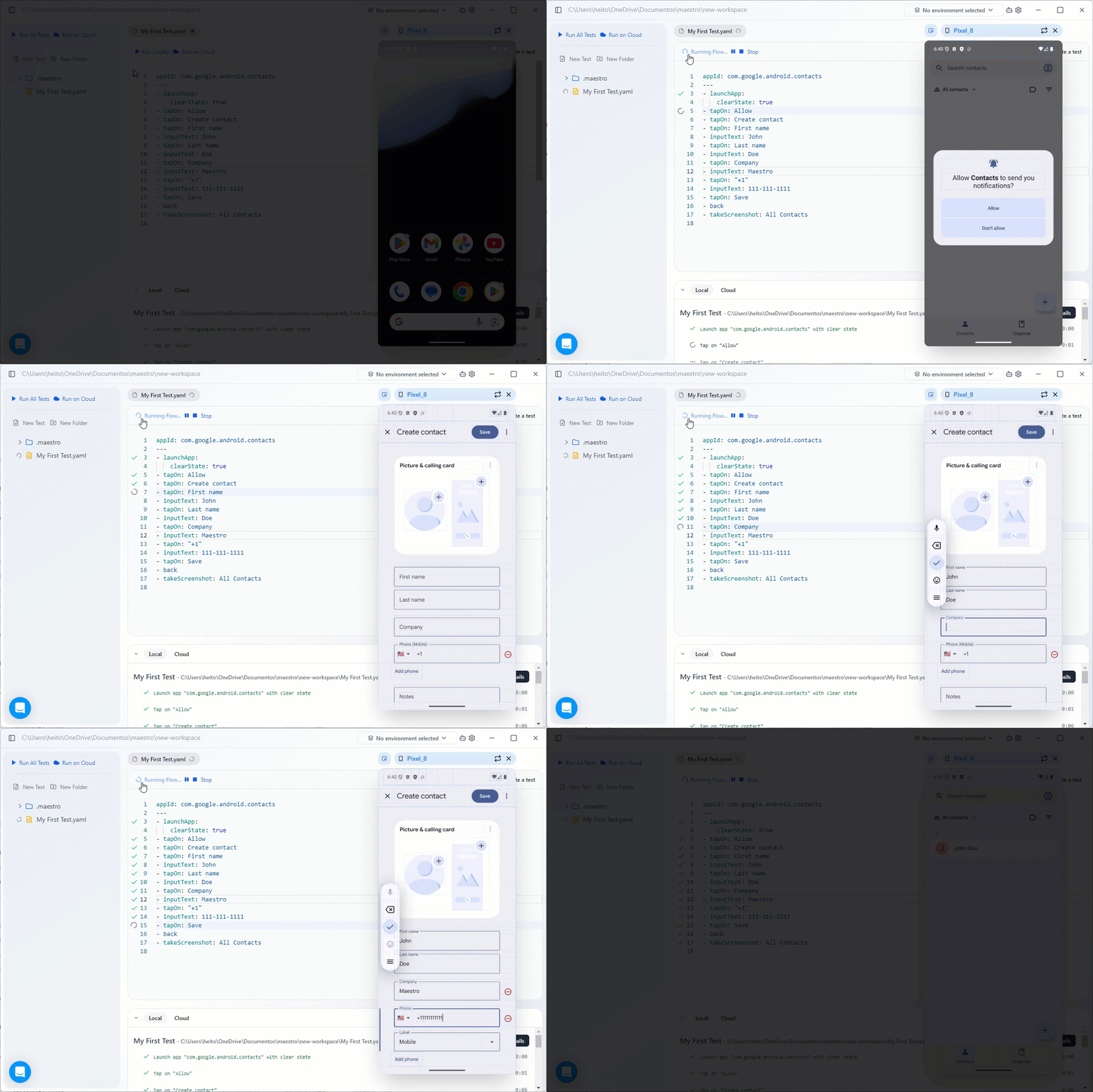
The test launches the native Contacts app, creates a new entry, saves it, and captures a screenshot.
{% hint style="info" %}
To learn more about the commands you can use to create tests, access the [Commands](https://docs.maestro.dev/reference/)page.
To learn about how you can structure tests, also referred to in Maestro as Flows, access the [Flows](https://docs.maestro.dev/maestro-flows/).
{% endhint %}
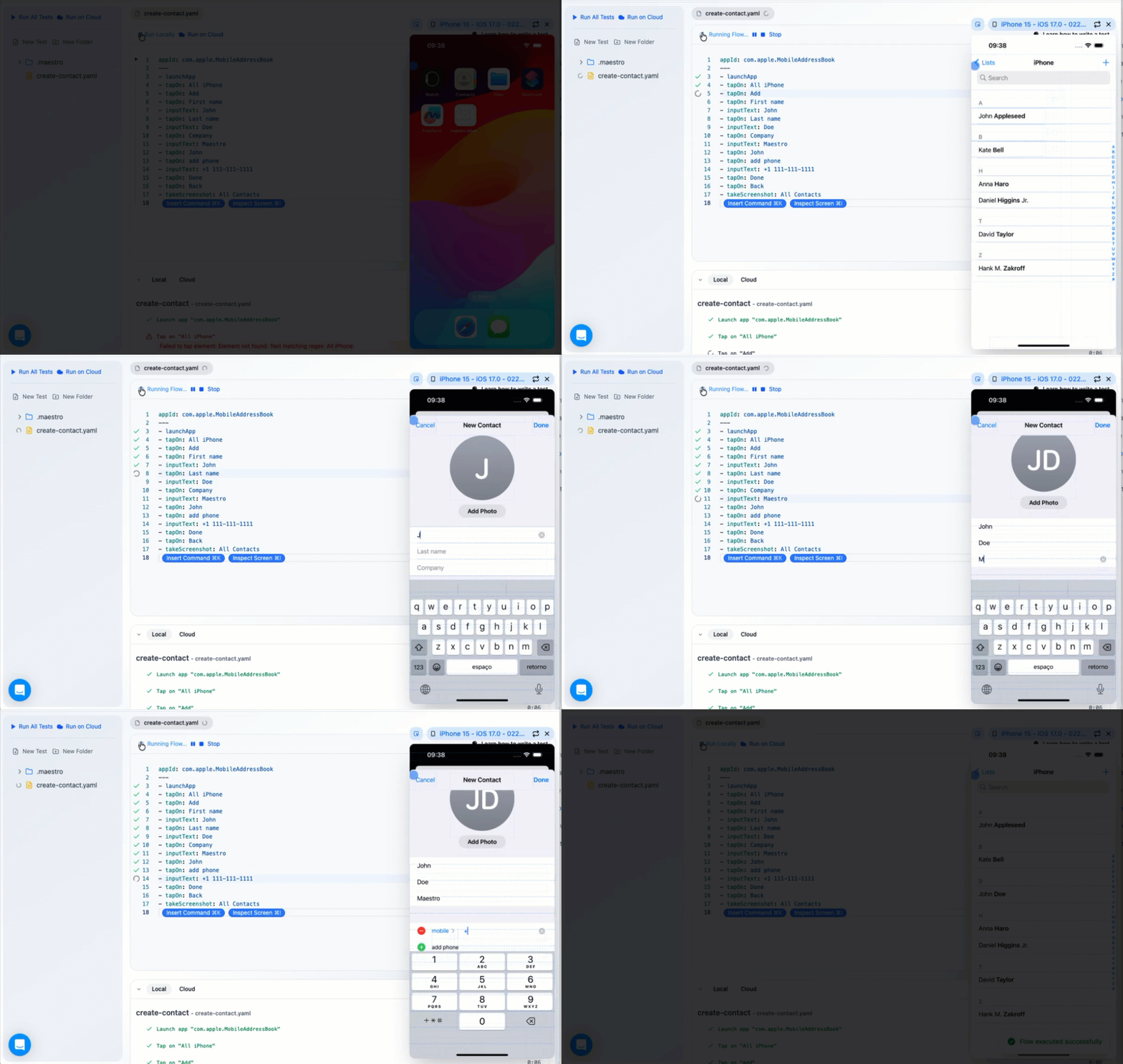
After pasting, click **Run Locally**. Watch your virtual device execute the steps automatically. Maestro Studio will highlight each step as it succeeds or provide a failure reason if an element cannot be found.
{% endtab %}
{% tab title="iOS" %}
```yaml
appId: com.apple.MobileAddressBook
---
- launchApp
- tapOn: All iPhone
- tapOn: Add
- tapOn: First name
- inputText: John
- tapOn: Last name
- inputText: Doe
- tapOn: Company
- inputText: Maestro
- tapOn: John
- tapOn: add phone
- inputText: +1 111-111-1111
- tapOn: Done
- tapOn: Back
- takeScreenshot: All Contacts
```
The test launches the Address Book app, adds a new contact, and saves the result.
{% hint style="info" %}
To learn more about the commands you can use to create tests, access the [Commands](https://docs.maestro.dev/reference/) page.
To learn about how you can structure tests, also referred to in Maestro as Flows, access the [Flows](https://docs.maestro.dev/maestro-flows/).
{% endhint %}
After pasting, click **Run Locally**. Watch your virtual device execute the steps automatically. Maestro Studio will highlight each step as it succeeds or provide a failure reason if an element cannot be found.
{% endtab %}
{% endtabs %}
{% endstep %}
{% endstepper %}
{% hint style="success" %}
**Interactive Flow authoring**
While this QuickStart focuses on manual YAML, Maestro Studio offers three interactive ways to build your test:
* **Inspect Screen**: Click the **Inspect Screen** button to select elements visually on the device and receive recommended commands.
* **Insert Command**: Click the **Insert Command** button in the IDE to choose from a list of standard actions.
* **Manual Entry**: Type commands directly into the YAML editor for precise control.
:hand-point-right: **Access** [Run tests with Maestro Studio](/maestro-studio/run-tests-with-maestro-studio.md) **for more information.**
{% endhint %}
### Video walkthrough
Watch this step-by-step video to see the first test creation process in detail:
{% embed url="" %}
### Next steps
Now that you’ve seen the power of "arm's length" automation, explore these resources to master the ecosystem:
* Visit the [Maestro Studio](https://docs.maestro.dev/maestro-studio/) to learn how to use visual element inspection and the Live REPL to build tests without writing code from scratch.
* If you prefer a programmatic approach or need to integrate tests into your CI/CD pipeline, head to the [Maestro CLI](https://docs.maestro.dev/maestro-cli/).
* To learn the best practices for logic, modularity, and nesting, or learn how to add JavaScript scripts to your tests check out the [Flows](https://docs.maestro.dev/maestro-flows/).
---
# Agent Instructions
This documentation is published with GitBook. GitBook is the documentation platform designed so that both humans and AI agents can read, navigate, and reason over technical content effectively. Learn more at gitbook.com.
## Querying This Documentation
If you need additional information that is not directly available in this page, you can query the documentation by asking a question.
Perform an HTTP GET request on the following URL with the `ask` and `goal` query parameters:
```
GET https://docs.maestro.dev/get-started/quickstart.md?ask=&goal=
```
`ask` is the immediate question: it should be specific, self-contained, and written in natural language.
`goal` is what the user is ultimately trying to achieve, the reason they need the answer. Sharing it helps GitBook give you a better, more relevant answer. A goal is most helpful when it describes the outcome the user wants rather than restating the question. For example, with `ask=how do I create an API token`, a goal like `automate deployments from our CI pipeline` lets GitBook tailor the answer to that use case.
The response will contain a direct answer to the question and relevant excerpts and sources from the documentation.
Use this mechanism when the answer is not explicitly present in the current page, you need clarification or additional context, or you want to retrieve related documentation sections.