> For the complete documentation index, see [llms.txt](https://docs.maestro.dev/llms.txt). Markdown versions of documentation pages are available by appending `.md` to page URLs; this page is available as [Markdown](https://docs.maestro.dev/maestro-studio/run-cloud-tests-from-maestro-studio.md).
# Run cloud tests from Maestro Studio
Execute mobile tests on cloud devices directly from Maestro Studio. Select apps, pick device models, and monitor live results from the editor.
Maestro Studio provides a seamless way to execute your mobile tests on cloud infrastructure without leaving your development environment. This allows you to test on various device models and OS versions while keeping your local machine free for other tasks.
### Prerequisites
You need an account to take advantage of Maestro Cloud solution. Access [Maestro Cloud Plan](https://signin.maestro.dev/sign-up) for more information.
{% stepper %}
{% step %}
### Trigger a cloud runs
After creating your tests, you can initiate a [cloud](/maestro-cloud/readme.md) execution directly from the Studio interface in two ways:
1. **Run All Tests**: Click on the **Cloud tab**, and then click on the **Run All Tests** button to execute all root-level tests in your workspace.
2. **Run a Single Test**: Open a specific test file in the editor and click on the **Cloud** tab, then click on **Run Test**.
{% endstep %}
{% step %}
### Configure the run
Clicking on **Cloud,** and then on **Run Test**, opens a configuration modal. You must complete the following required settings before launching the run:
* **Device**: Select the specific device model and API level for your test (e.g., Pixel 6 - API 34).
* **App Selection**: Select your application. If this is your first time testing the app, click the app selector and choose **Upload App File** to pick your `.apk` or `.app` bundle.
For more advanced testing scenarios, you can expand **More Options** to select:
* Environment
* Project
* Device Locale
You can select an existing Environment, or create a new one. To create a new one, click **Manage Environments** to define tags (for filtering tests) and environment variables.
{% hint style="info" %}
For further information about tags, access [Test discovery and tags](/maestro-flows/workspace-management/test-discovery-and-tags.md).
For more information about variables, access [Parameters and constants](/maestro-flows/flow-control-and-logic/parameters-and-constants.md).
{% endhint %}
If you manage multiple Maestro projects, select the specific project to receive these test results.
Use the **Device Locale** option to manually set the locale for the cloud device (e.g., `en_US` or `de_DE`). For more information, access [Test in different locales](/maestro-flows/flow-control-and-logic/test-in-different-locales.md).
{% endstep %}
{% step %}
### Execute and monitor
After defining your settings, click **Run Test**. Maestro Studio will package your tests and app binary, then upload them to the cloud infrastructure.
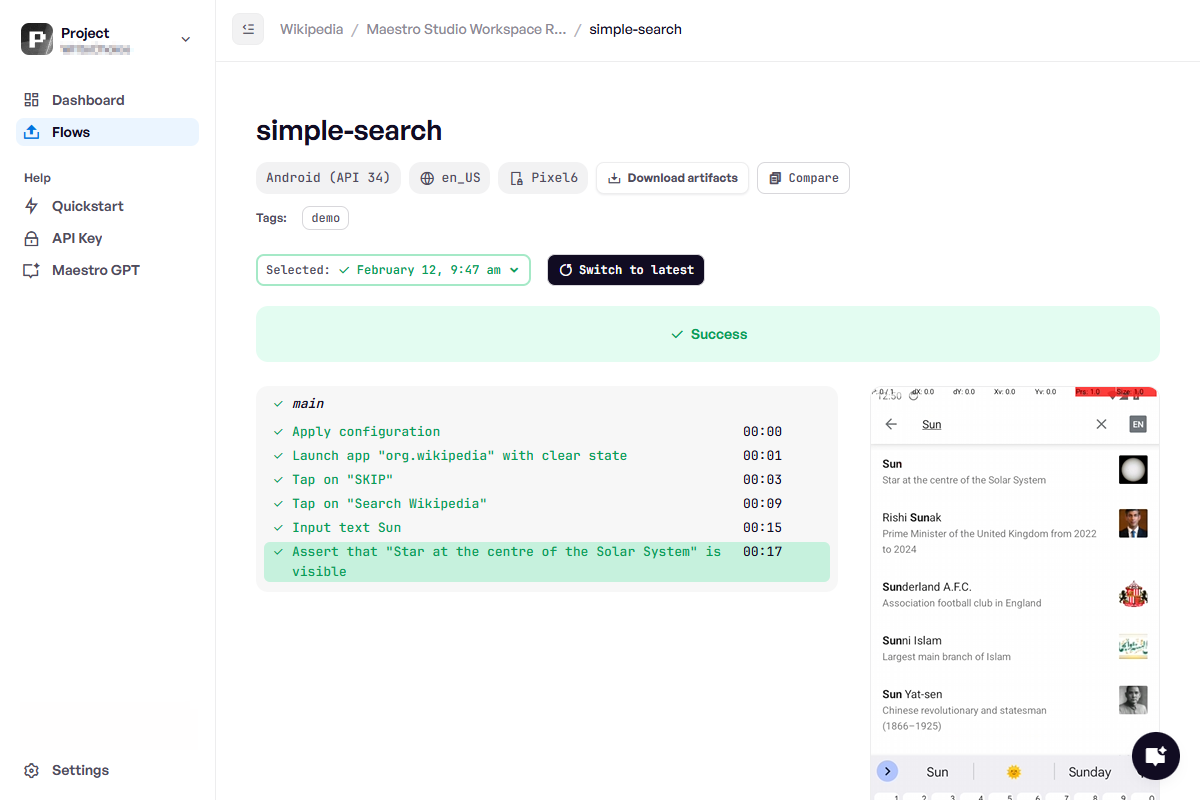
You can monitor the execution directly within the Maestro Studio output terminal:
* **Real-time Updates**: The output terminal displays the upload status and the live progress of each test.
* **Success and Failure**: A summary shows how many tests passed or failed. If a test fails, the specific error or failed assertion is displayed directly in the output terminal.
To deep-dive into a specific run, click the **View on Maestro Cloud** button in the output terminal. This opens the Maestro Cloud Console, where you can:
* Inspect every individual step of the test.
* Review the screen recording of the execution.
* Access detailed logs and UI hierarchy data for debugging.
{% endstep %}
{% endstepper %}
---
# Agent Instructions
This documentation is published with GitBook. GitBook is the documentation platform designed so that both humans and AI agents can read, navigate, and reason over technical content effectively. Learn more at gitbook.com.
## Querying This Documentation
If you need additional information that is not directly available in this page, you can query the documentation dynamically by asking a question.
Perform an HTTP GET request on the current page URL with the `ask` query parameter, and the optional `goal` query parameter:
```
GET https://docs.maestro.dev/maestro-studio/run-cloud-tests-from-maestro-studio.md?ask=&goal=
```
`ask` is the immediate question: it should be specific, self-contained, and written in natural language.
`goal` is optional and describes the broader end goal you are ultimately trying to accomplish on behalf of the user. GitBook uses it to tailor the answer towards what is most useful for that goal.
The response will contain a direct answer to the question and relevant excerpts and sources from the documentation.
Use this mechanism when the answer is not explicitly present in the current page, you need clarification or additional context, or you want to retrieve related documentation sections.