> For the complete documentation index, see [llms.txt](https://docs.maestro.dev/llms.txt). Markdown versions of documentation pages are available by appending `.md` to page URLs; this page is available as [Markdown](https://docs.maestro.dev/maestro-flows/workspace-management/record-your-flow.md).
# Record your Flow
Record a Flow as an MP4 with Maestro CLI and share runs for debugging or demos.
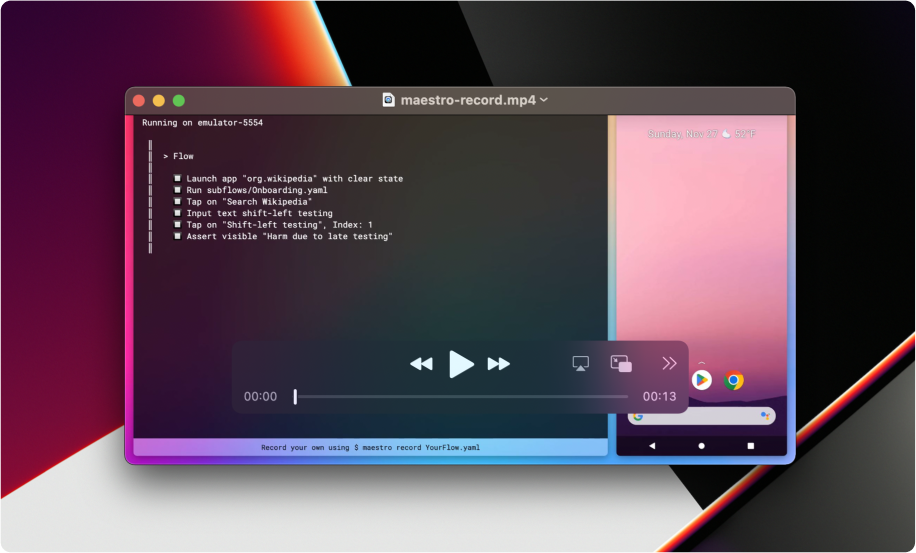
Maestro allows you to generate high-quality screen recordings of your tests without needing third-party software. The `record` command programmatically stitches the app screen and Flow output into a professional MP4, making it easy to debug failures or showcase features.
### Why record your Flows?
* **Debugging**: Visually identify race conditions or rendering issues by seeing exactly where a test fails.
* **Collaboration**: Share a clear video of a bug or user journey with developers and stakeholders.
* **Documentation**: Maintain a visual record of your application's critical paths for compliance or training.
### How to record
To ensure the best performance and privacy, it is recommended to use Local Rendering. This processes the video directly on your machine.
```bash
maestro record --local YourFlow.yaml
```
After rendering, the video will be available in the same directory as the [reports and artifacts](/maestro-flows/workspace-management/test-reports-and-artifacts.md):
* **macOS and Linux**: `~/.maestro/tests`
* **Windows**: `%userprofile%\.maestro\tests`
{% embed url="" %}
{% hint style="info" %}
#### Deprecation notice
The standard `maestro record` (remote) command is being deprecated. In future releases, local rendering will become the default behavior. We recommend switching to the `--local` flag now to prepare for this change.
{% endhint %}
#### Legacy (Remote rendering)
If you run `maestro record` without the `--local` flag, Maestro currently sends the raw screen capture and Flow output to mobile.dev servers to be processed.
{% hint style="info" %}
#### Privacy and security
* **Signed URLs**: Remote recordings generate a [signed URL](https://cloud.google.com/storage/docs/access-control/signed-urls) valid for 60 minutes.
* **Auto-Deletion**: All videos sent to our servers are automatically deleted after 24 hours.
{% endhint %}
### Related content
You can also record your tests using [startRecording](/reference/commands-available/startrecording.md) or take screenshots for specific steps using [takeScreenshot](/reference/commands-available/takescreenshot.md).
---
# Agent Instructions
This documentation is published with GitBook. GitBook is the documentation platform designed so that both humans and AI agents can read, navigate, and reason over technical content effectively. Learn more at gitbook.com.
## Querying This Documentation
If you need additional information that is not directly available in this page, you can query the documentation dynamically by asking a question.
Perform an HTTP GET request on the current page URL with the `ask` query parameter, and the optional `goal` query parameter:
```
GET https://docs.maestro.dev/maestro-flows/workspace-management/record-your-flow.md?ask=&goal=
```
`ask` is the immediate question: it should be specific, self-contained, and written in natural language.
`goal` is optional and describes the broader end goal you are ultimately trying to accomplish on behalf of the user. GitBook uses it to tailor the answer towards what is most useful for that goal.
The response will contain a direct answer to the question and relevant excerpts and sources from the documentation.
Use this mechanism when the answer is not explicitly present in the current page, you need clarification or additional context, or you want to retrieve related documentation sections.